
Ordering and operations

Where customer ordering meets store operations.

Cater Me is the layer between an order being placed and the business completing it. Orders arrive from your website, your tables or a link you share, then run through one workflow: accepted, printed in the kitchen, prepared, collected or dispatched, and followed by the customer to the door.

Ordering
Website widget, hosted menu, QR at the table
Operations
Store order queue, staff app, kitchen printing
Delivery
Live courier quotes and customer tracking
The Cater Me ordering page running in a browser: store header with address and opening status, category tabs, and menu items with prices and add-to-cart buttons
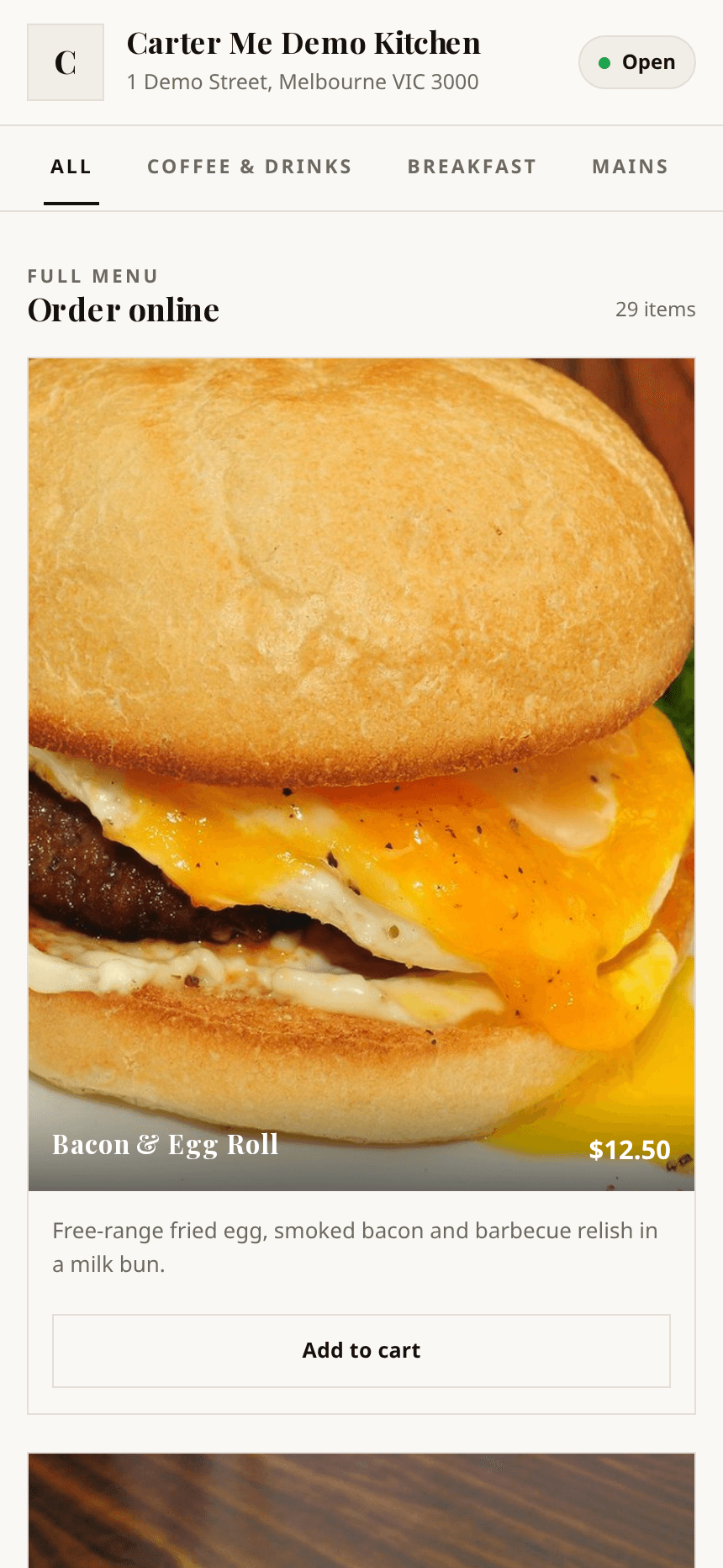
The Cater Me ordering site on a phone: store header with address and opening status, category tabs, and menu items with photos, prices and add-to-cart buttons

The product

Built around the way food businesses actually take orders.

An order can arrive from a customer’s phone on your website, from a QR code on a table, or from a link you send out. Whichever way it comes in, it lands in the same queue, reaches the kitchen the same way, and is priced against the same menu and the same store settings.

From there the order follows one path: accepted or auto-accepted, sent to the printer, given a ready time based on what was ordered, dispatched to a courier if it is a delivery, and followed by the customer from their own phone. The business side of that — menu, stores, staff, customers, money — sits in one portal rather than four disconnected tools.

  • Your website

    Embed the ordering widget on the pages you already have, or link straight to the hosted ordering page.

  • The table

    One QR code per table. The table number travels with the code, so guests are never asked to type it.

  • A shared link

    The hosted ordering page has its own address, so it can be sent by message or used for phone orders.

  • An Order Now button

    The same ordering engine can open from a button on any page of your site, without changing your layout.

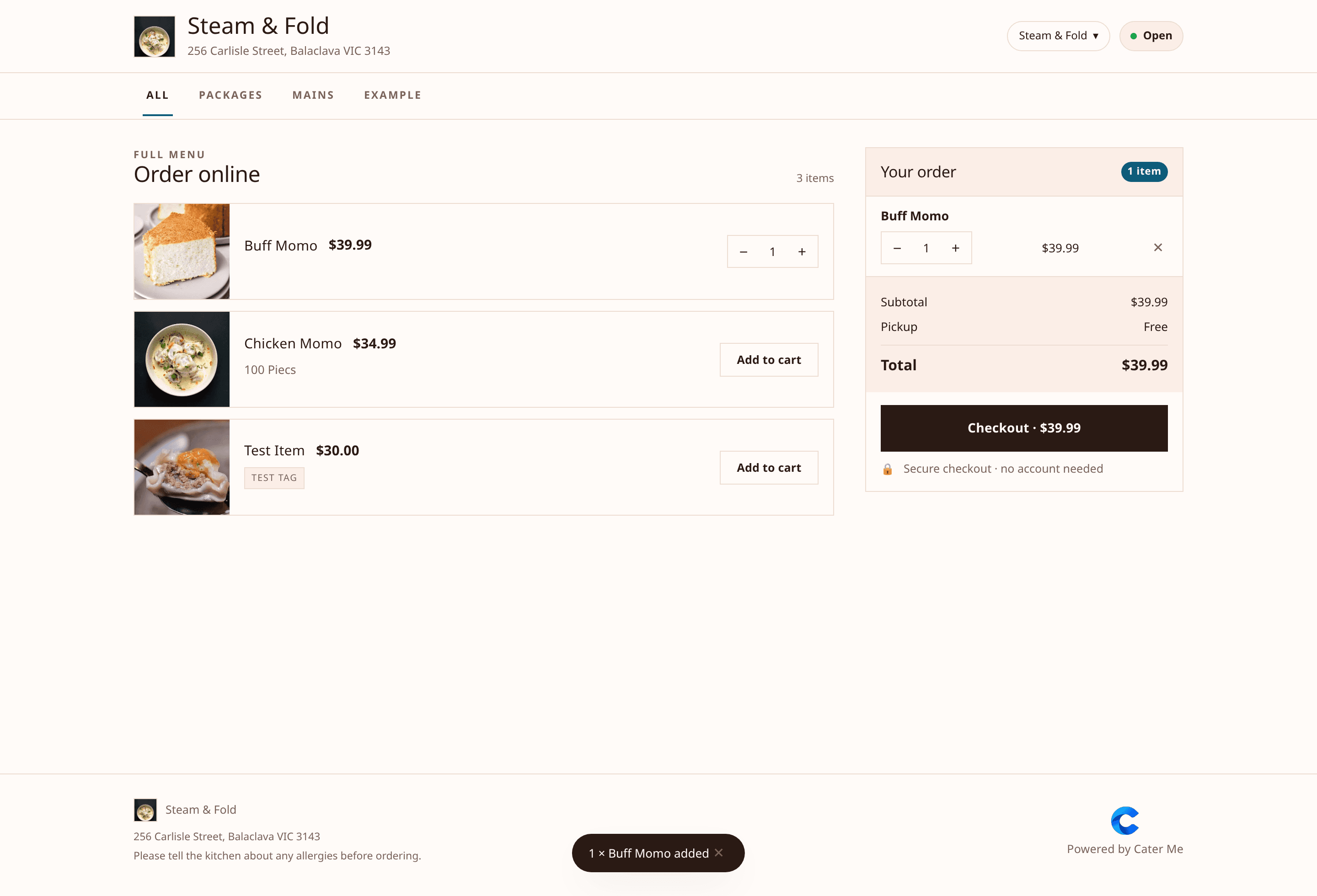
The Cater Me ordering page and order panel side by side: menu items with prices, and the order panel showing subtotal, pickup and total

How an order moves

One path from the customer to the kitchen.

Cater Me connects the ordering experience with what happens inside the business. Whichever way an order arrives, it lands in the same place, goes to the same printer and comes out as a pickup, a delivery or a table order.

  1. 01CustomerPhone at the table, or on your website
  2. 02OrderOnline, QR or a shared link
  3. 03Cater MeTakes the order and prices it
  4. 04StoreThe order appears for staff
  5. 05Kitchen / printerA ticket prints if one is connected
  6. 06PreparationKitchen works the order
  7. 07Pickup / deliveryCollected, or handed to a courier

Stores use the parts they need. A takeaway shop may take online orders only; a venue may run table ordering alongside its website ordering. Ordering modes are switched per store.

QR ordering

Table ordering without an app, an account or a waiter writing it down.

A store can create its tables in the portal and generate a code for each one. The code opens the store's own ordering page with the table already known, so the guest orders and the order arrives at the store carrying the right table number.

Pickup
Order ahead, collected from the store.
Delivery
Quoted to the customer's address before they pay.
Dine-in
Table ordering, where the store has it enabled.
  • The table number comes from the code, so nobody types it and nobody guesses it.
  • Codes are stored server-side and can be rotated if a code leaks or a card is reprinted.
  • Table sessions can be opened, transferred and closed by staff.
  • Table ordering is switched on per store; it is not forced on venues that only take takeaway.
Table 14 seats
The Cater Me QR code generated for Table 1, linking to the store's ordering page for that table

Scan to open this table’s menu

  1. Table 1created in the portal, with seats and a zone
  2. Unique codeone per table, revocable at any time
  3. Guest scansthe menu opens on that table's page
  4. Guest ordersitems, extras and a note
  5. Order appearsin the portal's order queue, and prints if a printer is connected

Table ordering needs a store that has been configured for it: tables created, dine-in enabled and ordering open. It is not automatic for every setup.

Headless ordering engine

Put the ordering experience on your own website.

Most ordering systems send the customer to somebody else's page. Carter Me can run inside the site you already have: one script tag, an Order Now button, and the ordering interface opens on top of your pages. The customer never leaves your domain and you keep the order.

01

Your website

The pages, branding and traffic you already have.

02

Carter Me ordering engine

Menu, cart, checkout, payment and order status.

The widget is an embed, not a fork of your site: your website keeps doing its job and Cater Me handles the ordering and the order.

<div id="caterme-ordering"></div>
<script src="https://cater-me-headless-engine.vercel.app/widget.js"
        data-business-id="67c3de1c-9033-4f49-94b8-1c6fa932325f"></script>
A business website with the Cater Me ordering interface running inside the page, showing the store's menu and order panel
  • Embeddable widget, or a hosted ordering page if you have no website.
  • An Order Now button or link opens the ordering interface from anywhere on your site.
  • The ordering surface follows the host page's colours, type and corner radius.
  • Each store gets its own embed code, and the domains allowed to use it are listed in the portal.
  • API keys let your own systems read the store's catalogue and push orders in.

The ordering engine covers the customer ordering experience and the order behind it. The rest of your website stays yours; Cater Me is not a website builder.

Multiple stores

More than one location, kept apart.

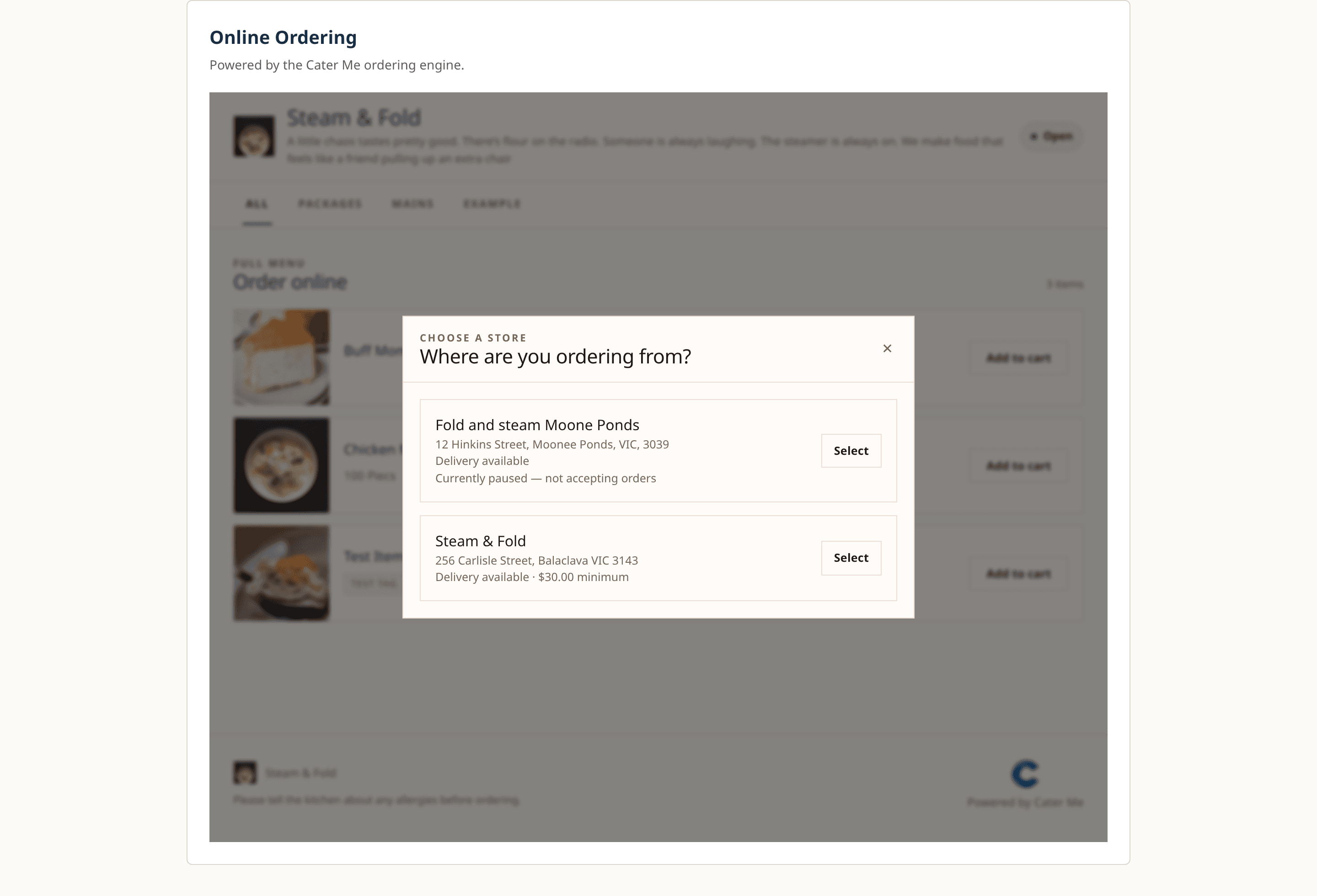
A business can hold more than one store. Each store keeps its own menu, orders, printers, opening hours and delivery settings, and the portal can be scoped to a single store or viewed across all of them.

  • Your businessthe account you sign up with
  • Store 1
  • Store 2
  • Store 3
Menu
Categories, items, prices and availability belong to one store.
Orders
Every order is filed against the store that took it.
Earnings
Takings, fees and payouts are shown per store.
Settings
Hours, address, ordering modes and status are per store.
Printers
Printers are registered to the store they sit in.
Operations
Staff, store status and the order board follow the store you select.

A store is a trading location with its own menu and its own orders. Stores are not a way of splitting one menu across several brands.

Order management

Every order has a status, and the kitchen controls it.

An order is never a mystery. It carries a status from the moment it is placed until it is finished, the store sees it change, and the customer sees what the store sees.

  1. New orderPlaced and paid, waiting for the store.
  2. AcceptedThe store has taken it on.
  3. PreparingIn the kitchen.
  4. ReadyReady to hand over, or waiting for a courier.
  5. Out for deliveryWith the driver, where delivery applies.
  6. CompletedCollected or delivered.
What an order carries
Order number
Generated per order, quoted by staff and the customer
Customer
Name, phone and email from checkout
Items
Quantities, variants and paid extras as chosen
Order type
Pickup, delivery or dine-in
Payment
Paid, awaiting payment, refunded
Delivery
Quote, driver and delivery status on delivery orders
Time
Placed, promised and last updated
Actions
Accept, advance, reprint, refund, cancel

The order above is the shape of every order in Cater Me, whichever way it arrived. Nothing about it is a mock-up: these are the fields the portal shows for a live order.

Statuses are moved by the store. Cater Me records the change and shows it to the customer; it does not decide when a dish is ready.

Delivery

Couriers are requested from the platform that already runs them.

When a store delivers, Carter Me can request a courier through DoorDash Drive. The quote is asked for while the customer is still in the cart, and once it is accepted the delivery is created and tracked through to completion.

  1. 01Order receiveddelivery chosen and quoted at checkout
  2. 02Delivery requestedCater Me creates the delivery
  3. 03Driver assignedthe provider names the courier
  4. 04Driver updatesstatus and position come back to Cater Me
  5. 05Delivery completedthe order closes and the customer is told
  • DoorDash Drive is the delivery provider built into the platform today.
  • Delivery is optional per store and per order: pickup and dine-in orders do not use it.
  • Delivery status, courier details and position are the provider's, passed through to your portal and the customer's order page.
  • Automatic dispatch can be configured, or a store can request a driver on an order when it is ready.
  • If the provider is unavailable, the store can fall back to its own arrangements rather than losing the order.

Delivery times and availability depend on the courier provider and the store's area. Cater Me does not guarantee a delivery time and does not fulfil deliveries itself.

Kitchen printing

Kitchen tickets, on the printer the store already owns.

Cater Me does not need to be installed on the printer. Orders are queued in Cater Me, sent to a small bridge on the store's network, and printed from there.

Cater Me

the order becomes a print job

Bridge

a device on the store network, paired with a token

Printer

the ticket comes out in the kitchen

  • Printers are registered per store and can be given a role, so one printer can take kitchen tickets while another takes receipts.
  • Auto-print can be enabled so accepted orders print without anyone pressing anything.
  • Paper width is set per printer, for the roll the store actually uses.
  • The bridge reports back, so the portal can show a printer that has gone quiet or a job that failed.
  • A virtual printer is available for testing a setup before hardware arrives.

Printer support depends on the model and how it connects. Check what a printer supports before buying hardware for Cater Me.

Business portal

Everything behind the order, in one place.

The portal is where the business runs the store: the menu, the orders, the printers, the money view and the settings. It is grouped the way a store is worked rather than the way a database is built.

Sign-up, store setup, the menu, printing, delivery and the money view are all handled in one account.

Payments and payouts

What was sold, what it cost, and what reaches the bank.

The portal keeps the money side in one place: payments taken, fees, refunds, the store's wallet balance and the payouts that have been sent.

Transactions
Every payment against an order, with its state.
Financials
Takings, fees and refunds for the period you select.
Wallet
The balance held against the store and what it is made of.
Payouts
Transfers to the connected bank account and their status.
  • Card payments are taken through Stripe, in the checkout the customer is already using.
  • Refunds are issued against the original payment and recorded on the order.
  • Payouts go to the bank account the business connected, not through a Cater Me balance sheet.

The portal reports what the payment provider reports. It is not accounting software and does not file anything on the business's behalf.

Getting started

Four steps from an account to the first order.

  1. 01

    Create your Carter Me account

    A business signs up with an email address and confirms it. Each person gets their own login, and staff are added to the store they work in.

  2. 02

    Add the business and the store

    Business details, the store's address and opening hours, and the bank account for payouts through Stripe. Stores are added one at a time, so a second location does not disturb the first.

  3. 03

    Build the menu and switch ordering on

    Categories and items, photos and prices, extras and availability. Then the ordering surfaces: the hosted page, the embed on your website, or the QR codes for tables.

  4. 04

    Start accepting orders

    Orders arrive in the portal, the kitchen printer prints if one is connected, and the customer tracks the order to the door.

Signing up does not put a store live on its own. A store needs its details, its menu and its ordering switched on before it can take an order.

Features

What the platform covers

Every part below is in the product today. The screenshots are the working ordering site running on a live store.

Online ordering

A menu that sits inside the website you already have

Cater Me serves a hosted ordering page, and an embeddable widget for the site you already run. The widget reads the host page's colours, fonts and corner radius, so the menu looks like part of your website rather than a separate app bolted onto it.

  • Embeddable widget or a hosted ordering page
  • Follows the host site's theme
  • Categories, photos, prices and item descriptions
  • Opens and closes with your store hours
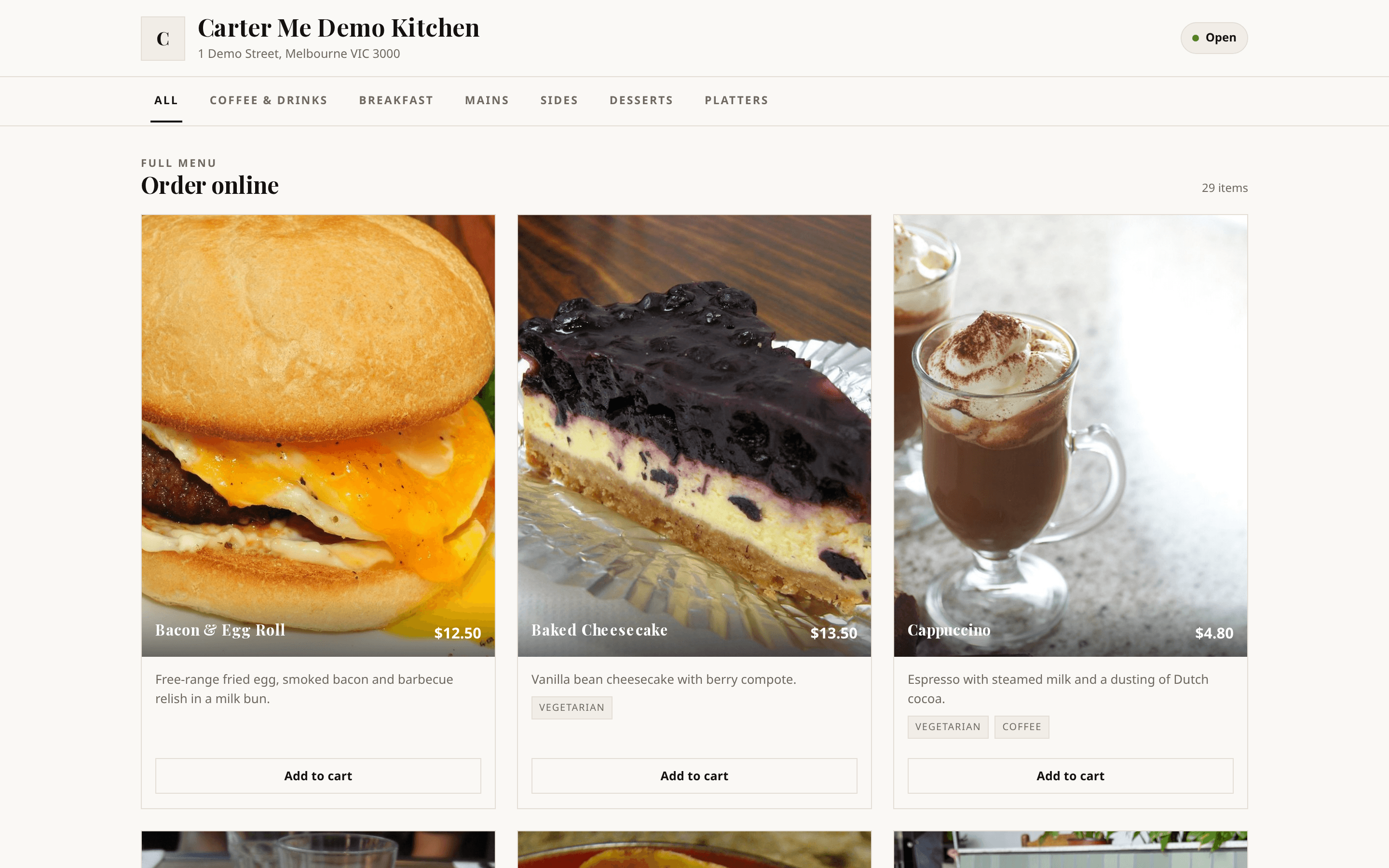
The Cater Me ordering page for a store, showing the store header, category tabs and priced menu items

Item options

Extras and variants chosen before the order is placed

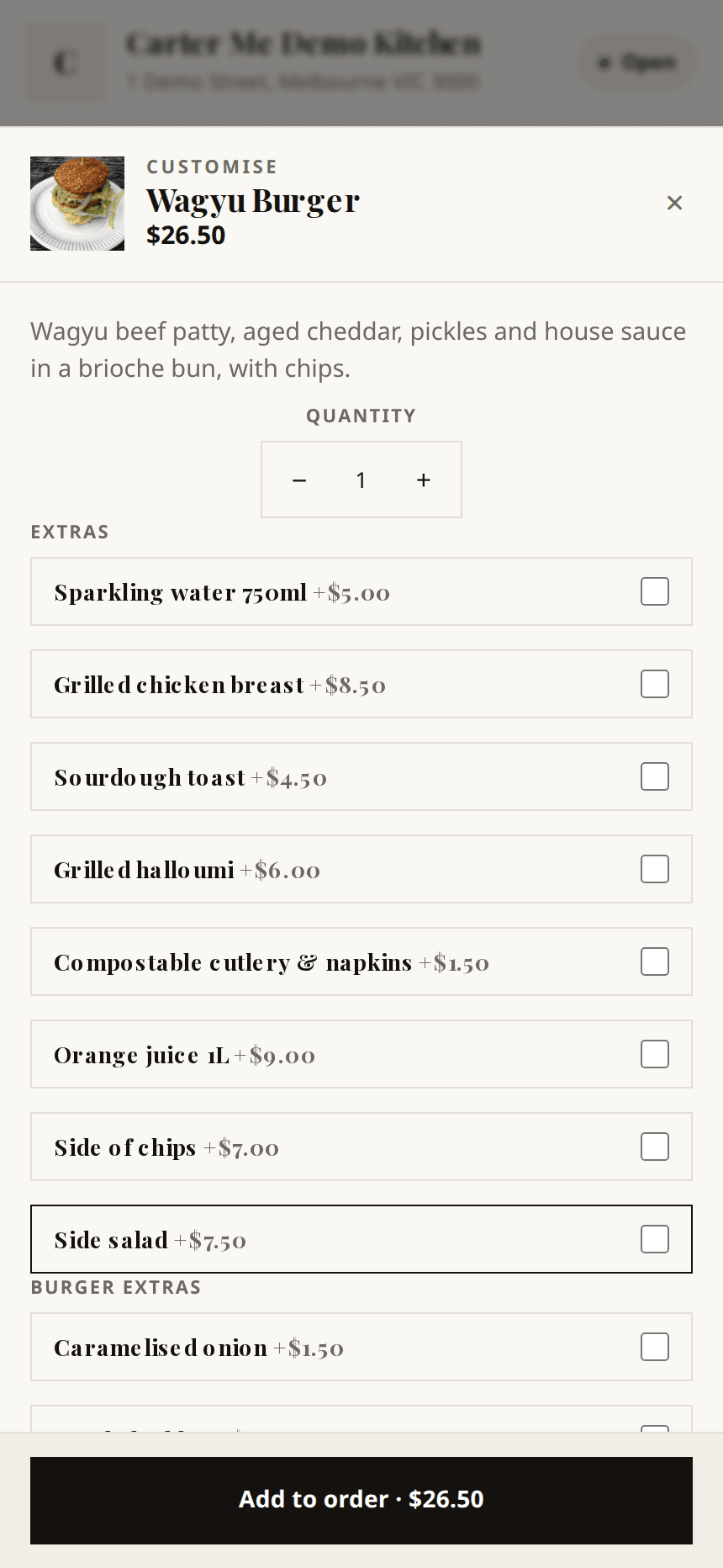
Items carry their own quantities, variants and paid extras. Choosing an item opens a panel for assembling it, so the kitchen receives the exact configuration rather than a note to sort it out later.

  • Paid extras and variants with their own prices
  • Quantity set in the panel, never typed
  • Per-item preparation times feed the ready time
The Cater Me item panel showing quantity controls, paid extras and a running item total

Cart and checkout

Pickup or delivery, decided inside one sheet

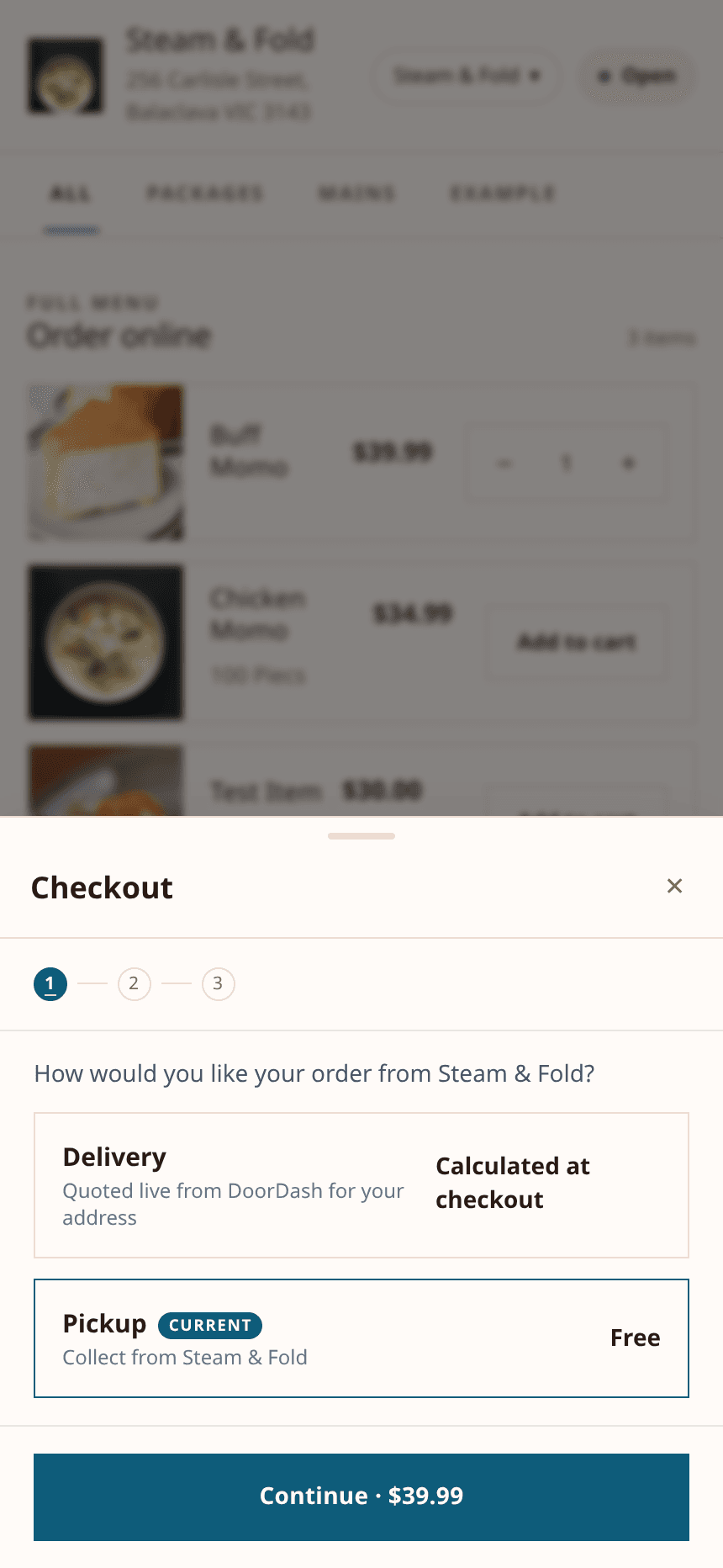
The cart and the checkout run in a single sheet on the ordering site. The customer picks pickup or delivery, chooses a time or as soon as possible, enters their details and pays by card. Delivery pricing is requested live for the address the customer enters.

  • Pickup, delivery or dine-in
  • As soon as possible or a scheduled time
  • Card payment in the same flow, no account required
  • Delivery quoted live for the customer's address
The Cater Me checkout sheet showing the three-step flow and the pickup and delivery options

Order status

Customers follow the order without ringing the store

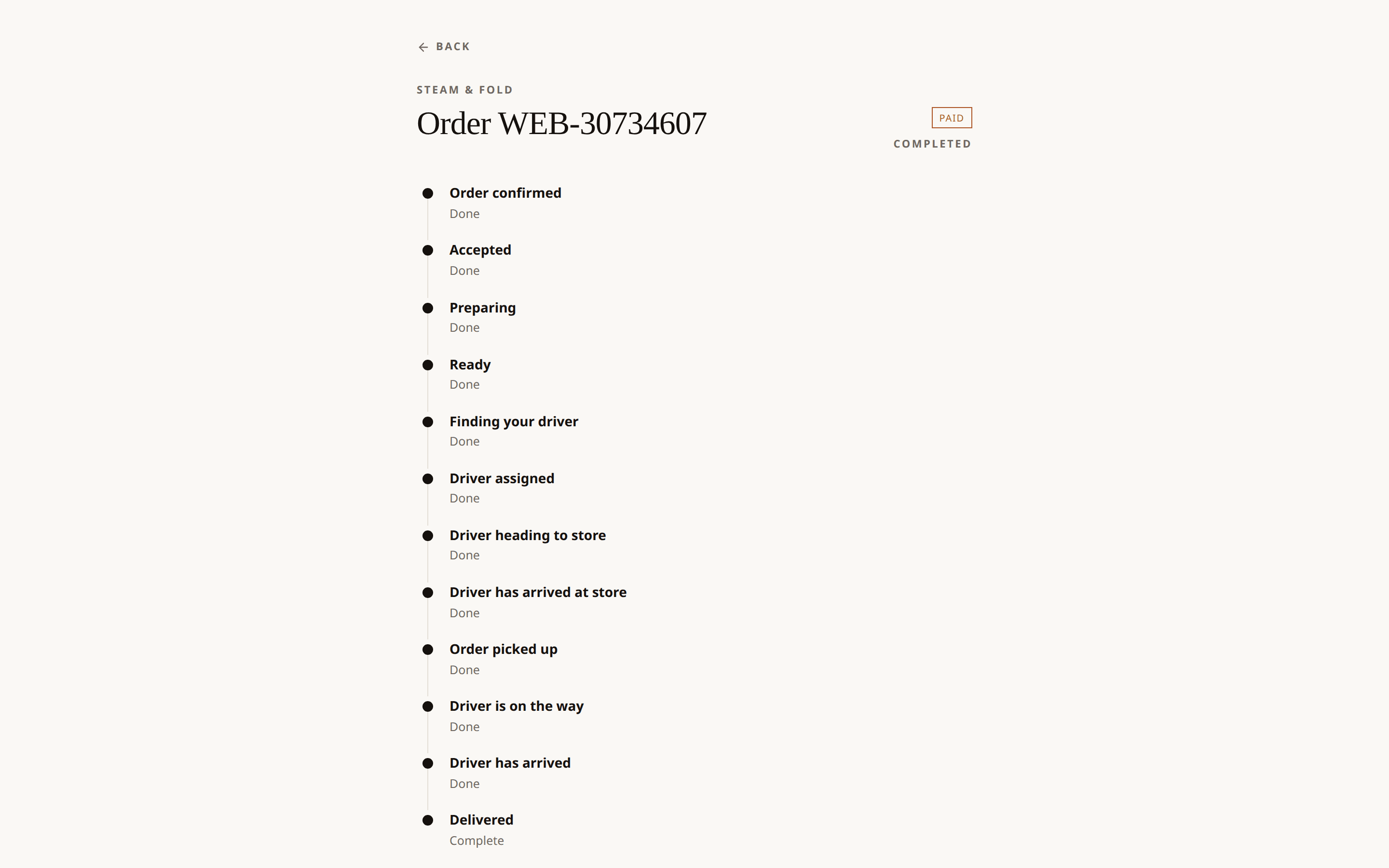
Every order carries a status the customer can open at any time: confirmed, accepted, preparing, ready, driver assigned, picked up, delivered. Once a courier is on the way, the same page shows the driver's live position.

  • Status updated as the kitchen and driver work
  • Email notifications on the events that matter
  • Live courier position during delivery
  • Works for pickup and dine-in as well as delivery
The Cater Me order status page listing every stage of a completed delivery order from confirmed to delivered

Taking orders

QR ordering and dine-in
A code per table opens the menu for that table. The table number comes from the code itself, so guests never type one and staff never guess which table ordered.
Website, widget and link ordering
A hosted ordering page, the same engine embedded on the business's own website, and a link that can be sent out. One queue behind all of them.
Order management
Orders reach the portal and the store together. Accept them automatically after a countdown, or accept each one by hand when the kitchen is busy.

Running the kitchen

Kitchen and receipt printing
Print jobs are addressed to the printer registered to the store. A job that does not print is queued and retried, and the device keeps its own history.
Preparation and ready times
Each item carries its own preparation time. The longest item in the order sets the ready time, and the customer is told when it changes.
Store status
Trading hours, current status and a pause control. Pausing stops new orders arriving while an existing order is still being finished.

Delivery

Courier dispatch
Delivery is quoted and dispatched through DoorDash Drive. The store sees the courier fee before it commits to the order.
Dispatch timing
Dispatch starts five minutes before the order is due, or the moment staff mark it ready. It does not wait for a driver to be found by hand.
Live tracking
The customer's tracking page carries the courier's position and each delivery event from collection to drop-off.

Running the business

Multiple stores
One business can hold several stores, each with its own menu availability, hours, printing, delivery settings and pause control.
Payments and payouts
Card payments settle into the store's own Stripe account. Refunds and payouts are visible against the order and the day.
Portal
Menu, add-ons, staff accounts, customers, marketing, email templates, analytics, financials, payments and billing in one place.

How it works

From signing up to the first order

Setup happens once. After that the work is the same three screens every service: the order queue, the printer and the delivery.

  1. 01

    Set up the business and the store

    Create the account, add the store, set its address, trading hours and delivery settings, and connect the store's Stripe account for card payments.

  2. 02

    Build the menu

    Categories, items, photos, prices, variants, extras and preparation times. Add-ons are configured once and can be attached to any item.

  3. 03

    Publish ordering

    Embed the widget on your website, share a link to the hosted ordering page, or print QR codes for the tables. The same menu serves all three.

  4. 04

    Run the day

    Orders arrive in the portal and at the store, print in the kitchen, dispatch a courier when it is time, and the customer follows the order to the door.

Common questions

Answers, in plain terms

Does Cater Me replace my website?

No. The ordering widget embeds into the site you already have and follows its theme. If you would rather not touch your site, the hosted ordering page works on its own.

Who delivers the orders?

Deliveries are quoted and dispatched through DoorDash Drive. Pickup and dine-in orders do not involve a courier, and no courier fee is added to them.

Where does the money go?

Card payments are taken on the store's own Stripe account, so the sale settles to the store. Cater Me is paid by a monthly subscription, not a commission on orders.

Can one account run more than one store?

Yes. A business can hold several stores, each with its own menu availability, hours, printers and delivery settings, and its own pause control.

Does the store need a connection to keep taking orders?

Ordering surfaces report a lost connection rather than failing quietly, and orders already placed are kept. Online ordering, courier quotes and dispatch need a working connection.

Don’t just take the order. Run what happens next.

Create an account, add your store and your menu, then take orders from your website, a QR code on the table or a link you share. Carter Me runs those orders through to completion inside the business. It is built for restaurants, cafes, takeaways, food trucks and caterers, running one store or several. If you would rather talk it through first, Carter Me can be contacted directly.

Contact

Talk to the team behind it

Cater Me is built by the people who answer these addresses. Tell us what your service looks like and we will tell you plainly whether the platform fits it.

Existing customers

Questions about a store, a menu, an order that has not arrived or a payment that looks wrong.

Partners and venues

Running a group of venues, adding Cater Me to an existing site, or working with us on delivery.

Send an enquiry

Tell us what your service looks like. Enquiries go to [email protected] and are answered in the order they arrive.